Changing Camera and Video Properties
WebCam Monitor allows you to view and configure your camera properties. The Camera properties depend on the manufacturer and model number of the camera. The basic properties are the same for most cameras. If you feel that your camera settings are not optimized for the environment you are monitoring, you can experiment and see which settings provide the best results.
For example, if you are monitoring a poorly lit area, you can try increasing the brightness. On the other hand, if you are monitoring a bright area like the inside of your store, then you can try changing the backlight compensation.
You can configure Camera properties, Video Properties and Audio Properties for your camera.
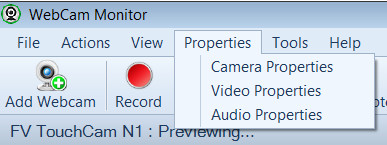
Changing Camera Properties:
To change camera properties like brightness, contrast, flickering, backlight compensation etc:
Changing Video Properties:
To change video properties like frame rate, video dimensions, image compression:
Changing Audio Properties:
To change Audio properties:
|