Event Logs
Security Monitor Pro is designed to run unattended. The program logs all important incidents so that you can be aware of the sequence of events when you review the Log later. The logs are displayed in the Event Log section. They can serve as records for legal and evidentiary purposes.
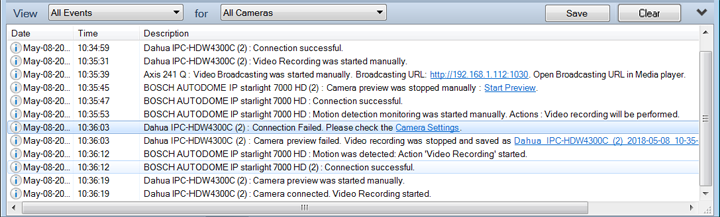
A log contains 3 columns – Date, Time and Description. When an event occurs, the date and time of the event is logged. The Description of the event provides additional information about the event.
Events are logged when:
- Settings are changed.
- Devices are changed.
- Monitoring is started or stopped.
- An Alert starts or stops.
- Photos are taken manually or automatically.
- Manual Recording is started or stopped.
- Broadcasting starts or stops.
View Event Logs
This option allows you to view all the camera events or only error events.

You can see the event logs for All or specific camera. If All Cameras option is selected from the drop down then log entries for all the added cameras will be displayed in the Event log. If a particular camera is selected then show all events of that particular camera.

Saving Logs
It is recommended that you save logs with relevant names to make them easier to find at a later date. To save a log, click on File >> Save Log. Specify the folder where you want to save the log and a name for the log file. Log files will be saved with automatically-generated names.
Viewing a Saved Log
Log files created during monitoring by Security Monitor Pro are saved as Text files. By default, Logs are saved in Documents >> Security Monitor Pro >> Event Log. You can view them in Microsoft Excel or Notepad (or any other program that can open text files).
Deleting All Logs
To erase the contents of the Event Logs for all cameras, click on File >> Clear Log. The logs for all cameras will be cleared.
Automatic Log Clearing
By default, Security Monitor Pro saves the Log files on application exit and everyday at set time. You can also choose to save and clear event logs at specific time.
Selecting or Editing a Camera from Event Log
Security Monitor Pro allows you to select or edit a camera using the context menu shown for the camera's log entry. This helps you to immediately view or edit cameras when analyzing the event log.
|