Setting up a Camera Schedule
The Scheduler in Security Monitor Pro allows you to set the start and stop time for a camera to automatically begin and end Monitoring actions, Video Recording and Broadcasting. You can configure an individual schedule for each camera.
To schedule a device, click Tools >> Scheduler >> Add.
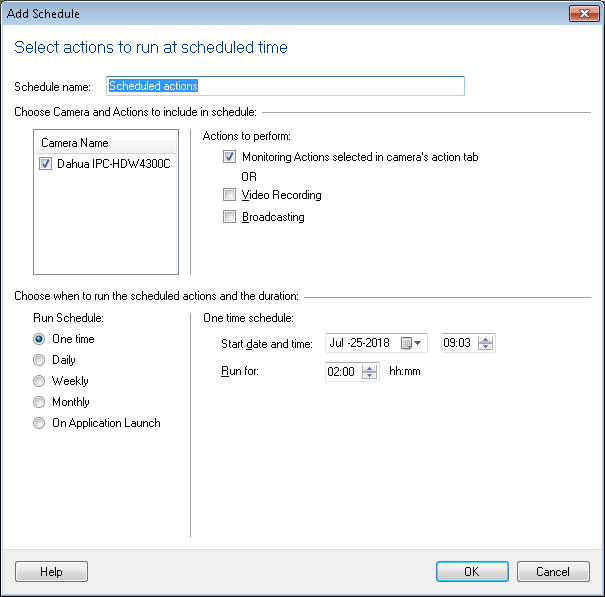
Schedule Name: You can specify a name for the schedule. This will avoid any confusion if you are scheduling multiple cameras separately.
Select Camera(s) and Action(s) to Schedule
Camera List: A list of cameras will be visible, if multiple cameras are added to Security Monitor Pro. You can check the cameras you wish to schedule.
Actions to perform
Monitoring Actions or Video Recording: You have the option to schedule either Monitoring actions where all or most of the the alerts are selected. The other option is to monitor during video recording.
Broadcasting: By selecting this option, you will be able to schedule the broadcasting of a live video.
Select the Type of Schedule
Run Schedule: You can choose the type of scheduling and configure the Schedule settings.
|