Understanding How FTP Works
Data exchange has been important from the early days of computing. A popular means of data exchange is connecting computers to one another.
The File Transfer Protocol (FTP) is used to transfer files between two computers over a network and Internet. In this article we will look at how to work with a FTP client. Auto FTP Manager is an advanced FTP client that automates file transfers between your computer and the FTP server.
What is FTP?
When you want to copy files between two computers that are on the same local network, often you can simply "share" a drive or folder, and copy the files the same way you would copy files from one place to another on your own PC.
What if you want to copy files from one computer to another that is halfway around the world? You would probably use your Internet connection. However, for security reasons, it is very uncommon to share folders over the Internet. File transfers over the Internet use special techniques, of which one of the oldest and most widely-used is FTP. FTP, short for "File Transfer Protocol," can transfer files between any computers that have an Internet connection, and also works between computers using totally different operating systems.
Transferring files from a client computer to a server computer is called "uploading" and transferring from a server to a client is "downloading".
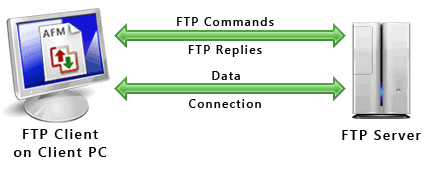
Requirements for using FTP
- An FTP client like Auto FTP Manager installed on your computer
- Certain information about the FTP server you want to connect to:
a. The FTP server address. This looks a lot like the addresses you type to browse web sites.
Example : Server address is "ftp.videodesk.net".
Sometimes the server address will be given as a numeric address, like "64.185.225.87".
b. A user name and password. Some FTP servers let you connect to them anonymously.
For anonymous connections, you do not need a user name and password.
To transfer files, provide your client software (Auto FTP Manager) with the server address, user name, and password. After connecting to the FTP server, you can use Auto FTP Manager's File Manager to upload, download and delete files. Using the File Manager is a lot like working with Windows Explorer.
FTP and Internet Connections
FTP uses one connection for commands and the other for sending and receiving data. FTP has a standard port number on which the FTP server "listens" for connections. A port is a "logical connection point" for communicating using the Internet Protocol (IP). The standard port number used by FTP servers is 21 and is used only for sending commands. Since port 21 is used exclusively for sending commands, this port is referred to as a command port. For example, to get a list of folders and files present on the FTP server, the FTP Client issues a "LIST" command. The FTP server then sends a list of all folders and files back to the FTP Client. So what about the internet connection used to send and receive data? The port that is used for transferring data is referred to as a data port. The number of the data port will vary depending on the "mode" of the connection. (See below for Active and Passive modes.)
Active and Passive Connection Mode
The FTP server may support Active or Passive connections or both. In an Active FTP connection, the client opens a port and listens and the server actively connects to it. In a Passive FTP connection, the server opens a port and listens (passively) and the client connects to it. You must grant Auto FTP Manager access to the Internet and to choose the right type of FTP Connection Mode.
Most FTP client programs select passive connection mode by default because server administrators prefer it as a safety measure. Firewalls generally block connections that are "initiated" from the outside. Using passive mode, the FTP client (like Auto FTP Manager) is "reaching out" to the server to make the connection. The firewall will allow these outgoing connections, meaning that no special adjustments to firewall settings are required.
If you are connecting to the FTP server using Active mode of connection you must set your firewall to accept connections to the port that your FTP client will open. However, many Internet service providers block incoming connections to all ports above 1024. Active FTP servers generally use port 20 as their data port.
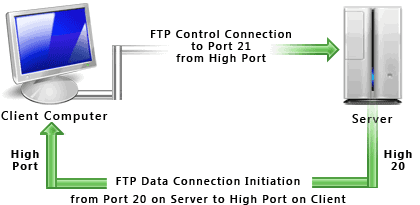
It's a good idea to use Passive mode to connect to an FTP server. Most FTP servers support the Passive mode. For Passive FTP connection to succeed, the FTP server administrator must set his / her firewall to accept all connections to any ports that the FTP server may open. However, this is the server administrator's problem (and standard practice for servers). You can go ahead, make and use FTP connections.
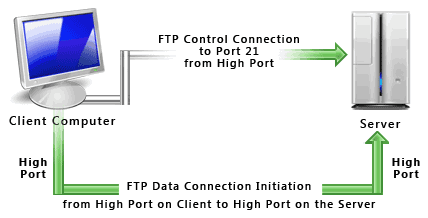
Once the FTP Client manages to open the internet connections, one for command and one for data, it starts communicating with the FTP server. You are now ready to transfer your files and folders between the two connected computers with Auto FTP Manager.