Shopping Cart  |  Member
Language:

My Screen Recorder Pro 2.67

Cutting and Splicing Screen Recordings

You're creating an ultra cool demo for your web site.  Your screen recording is perfect … or that's what you thought until your boss wanted you to remove the discussion of one whole feature, and add in a section on the new site map.  With My Screen Recorder Pro you can easily remove the unwanted section and replace it with a new one, without having to recreate the entire recording.  This article will show you how, using the split and join features.

As you probably figured out, split lets you break a recording into pieces, and join lets you combine two or more recordings (or two of the pieces you make with split) into a single movie.  I'll walk through removing an unwanted piece from the demo and replacing it with new material, then combining them to make the finished demo.

I'll start with the splitting process.  Just right-click on the file in the list, and select Split file.  The Split AVI Screen Recordings window opens.

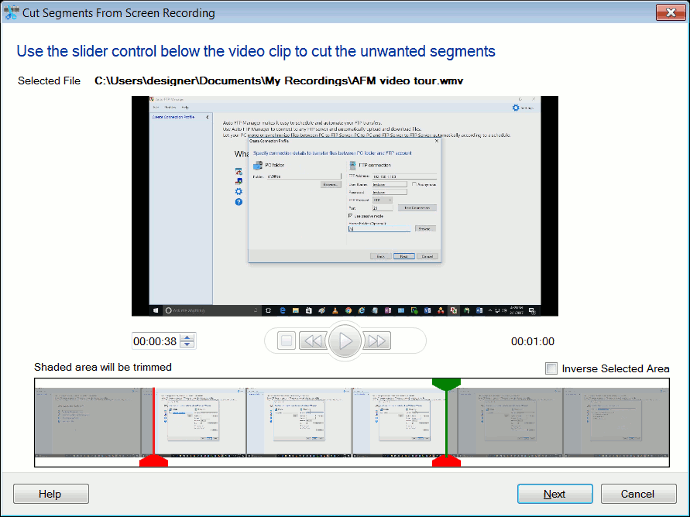
From the Output Folder dropdown list select the folder where you want to save the file. Click the New Folder Shortcut button to make a new folder.  Be sure to choose the Select portions of a file to split manually option.  The right side of the window is a special preview system, to select the portions to cut.  If you're going to use this system to remove a section (as I am now), remember to split out the parts you want to keep.  You'll reattach them later.  In this example, we want to remove a one minute long section in the middle.  That means we want to keep everything up to the beginning of that section (Split 1) and also everything from the end of that section to the end of the recording (Split 2).  We never actually mark the section we're not using to be split out.

To begin, I mark the start of the section to cut out.  Since we want to keep the section starting at the beginning of the movie, and since the recording is currently at the very beginning, I immediately click the Mark In button.  The entire length of the movie is selected, as you can see by the blue line that appears.  Now I click the play button and the movie plays back.  When it reaches the end of the part I want to keep (the beginning of the part I'm going to lose), I click the pause button. I can fine-tune the position before splitting the file, by using the backward and forward buttons and to shift one second at a time.

When I have the right area marked, I click Mark Out.  The blue line now indicates only the part of the recording I selected (from the beginning to the current location, in this case).  Now I click Add To List.  The selected region is added to the List of files ready for splitting.  We need to cut out the end of the video as well (skipping the section we don't need), so I hit the Play button again.  I pause after the unwanted material, and click Mark In.  To save time, I will just drag the slider to the end of the line, and click Mark Out.  Click Add To List once more, and I'm asked if I want to keep existing splits.  I answer Yes, and both of the still-needed parts are in the List.

Now it's time to actually split the video.  I just click Perform Split and the splitting begins.  The process of splitting a recording takes some time, because the program has to uncompress the AVI file, copy out the video frames and audio that are being split off, and then recompress them into new compressed AVI files.  You can watch the progress in the List while My Screen Recorder Pro works.


When it's done, I click Finish and two new files exist in My Screen Recorder Pro's Folder Shortcut list.  The original file was ProductDemo.avi.  The two split-off pieces are ProductDemo_Split1.avi and ProductDemo_Split2.avi.  Before joining them, I'll record a new segment on the site map, which I'll call SiteMap.avi.

Now it's time to join the two split sections plus the new recording into a single movie for my demo.  I'll work directly from My Screen Recorder Pro's file listing.  I just hold down the Ctrl key on my keyboard and select all three (by clicking on them individually), then right-click on the last and choose Join Files.  The AVI Join File Wizard appears.
The Wizard will join the three files I had selected.  The trouble is, the order is wrong.  The site_map file should be between the two Splits of the original file.  To fix that, I click once on site_map.avi in the list, and click the Move Up button. 

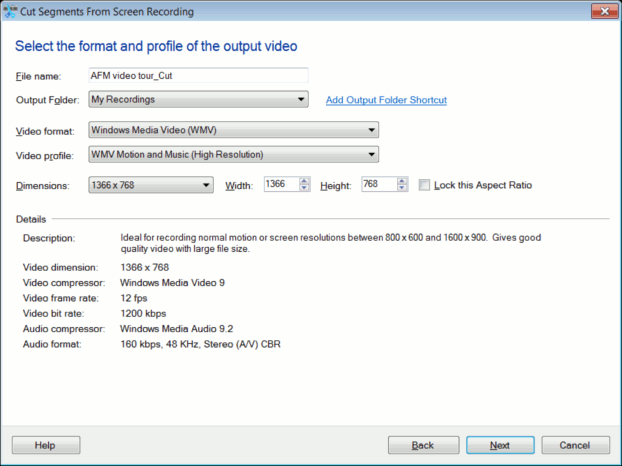
Now that the files are in the right order, I just click the Next button.  I'm asked to give a name and location for the joined file. I'll call it Web_Site_Demo.avi.  I can also select whether to produce an AVI or WMV file.  AVI files are desirable if you're planning to do additional editing of the movie, and only AVI files can be converted to an executable.  For web distribution WMV (Windows Media) files are generally a better choice.  Of course, once you make an AVI, you can use My Screen Recorder Pro's convert feature to make a WMV, too.  In this case I'll make an AVI file.  When I click Next, the AVI file is created.  The joining process, like the splitting process, does take some time, as the files are uncompressed, combined, and then recompressed.

By default, when I click Finish, the new movie is played.  If it is correct, the task is complete:  I have made a new movie with the beginning and end of the original recording, but with a segment cut out, and replaced by new material.

If you need to do any more complex editing than this, or if you would like other high-end features like adding a musical score, using transition effects, or adding titles and credits, you should consider using Video Edit Magic, a powerful video and audio editor.

Using My Screen Recorder's Split and Join features let you keep only the good parts of your recordings.  Did a feature of the program you're demonstrating change?  Just cut out that section and record a new one, without having to redo the entire recording.  You can remove unwanted pauses or places where you made a mistake, and even record twice and use the best parts of each "take".  These powerful capabilities let you easily create professional, perfect screen recordings to use as product demonstrations, for training or educational purposes, or as marketing tools.