Use Multiple Monitors for Screen Recording
With My Screen Recorder Pro, you can take full advantage of having multiple monitors on your computer. Capturing the screen activity on any monitor in a multi-monitor system can be useful. You can record the PC screen to a video file from any monitor connected to your PC. You can even record across multiple monitors.
Why capture a single monitor when you have multiple monitors connected? The answer is simple. Suppose, you have a 2 monitor system and want to record a PowerPoint presentation along with your narration. During your presentation you might want to refer to a Word document or an Excel spreadsheets to help you get your point across. With multiple monitors connected, the presentation can be captured on one monitor and Word or Excel spreadsheet can be referenced from the other monitor.
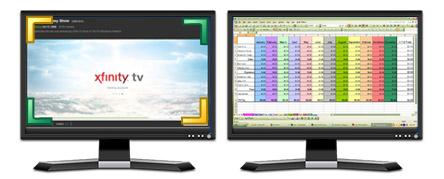
To record a monitor from a multi-monitor system, click Record  and choose Full Screen. Select the monitor screen that you want to record.
You can capture an application window or go across monitors by choosing the Custom Region option. When you click Custom Region, a crosshair appears that allows you to drag and select the region to capture. Click and drag the mouse to draw a rectangle on any area of a monitor or across multiple monitors.
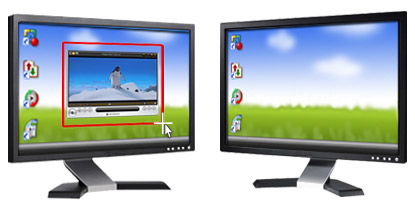
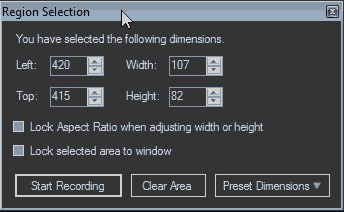
Custom dimensions can be set by dragging the mouse crosshair to the desired location. As you drag and select, a Region Selection box appears that allows you to set width and height of the recording area. The values of width and height should not exceed that of the monitor having the highest dimensions.
My Screen Recorder Pro puts you in complete control as you record from either one or multiple monitors. The power and flexibility of your multi-monitor system coupled with My Screen Recorder Pro helps you create even better tutorials and demos with ease.