Record the Last x Minutes of your PC activity
You may need to record the action on your PC to a video file. My Screen Recorder Pro can help. By using the "Save last x minutes of screen recordings" feature, you can have the program watch and recording everything on your screen, and keeping only the last few minutes. Then when something out of the ordinary occurs, a review of the recording can show you exactly what happened.
Just follow the steps below to keep only the last few minutes of your recordings.
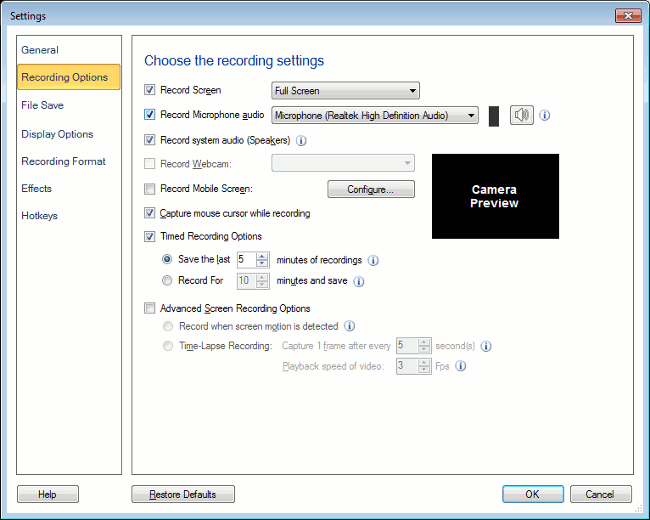
Step 1: Use Save The Last Minutes of Recording Feature
- Just start My Screen Recorder Pro, and click on the Settings button.
- Check the Timed Recording Options and Save last x minutes of screen recordings option and choose a number of minutes to save.
Why use this system? Well, suppose you left the program recording continuously without using Save last minutes. You could still use My Screen Recorder Pro’s Split File command to cut off the last 10 minutes after you stopped recording, right? Well, yes, but recording for hours or days can take up many gigabytes of storage space, depending on the settings you use. With Save last minutes turned on, the program only keeps a very limited duration of recording stored at any time, so it saves a lot of disk space. The proper duration of recording is split-off automatically when you stop recording.
Bug-detection becomes easy using this feature. Suppose an error occurs while you are writing a program. You are working and re-working to figure out and solve the problem. If you want to know exactly what actions you perform are causing a problem, you could save up to the last 30 minutes, depending on the details of your situation. The advantage is that only that duration when the problem arises would be saved thus keeping the screen recording short and precise.
Lots of people watch a continuous video feed on their computers. Traders often watch a financial news station. Many people watch a 24-hour news channel. If something important happens, you may want to "look back" and see the beginning of the story and if it is really important, you may want to save the recording. With the Record Last Minutes feature, you always have the last 30 minutes (or whatever duration you choose) available for review and permanent recording readily available.
My Screen Recorder Pro’s Save last minutes feature lets you record at all times, without wasting space on your hard drive, and lets you easily keep only the recordings of important events. You are saved of the trouble of editing out and removing unnecessary details that are absolutely irrelevant. The people who view the recording do not get distracted and the recording duration is removed considerably. This amounts to saving on the time and other resources required for playing, saving, viewing and distributing your screen recordings!