|
Connection Settings
You can change the connection settings of the application to suit your requirements. Click File >>Settings >> Connection.
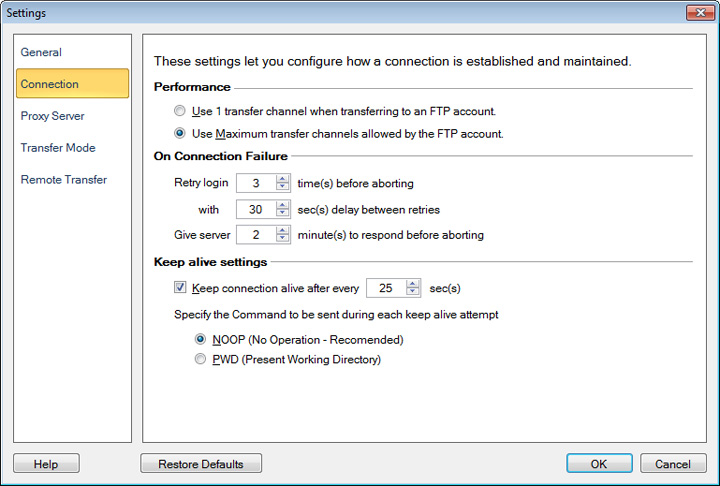
Performance
Depending on your CPU utilization, choose the number of transfer channels that you want to actively process the transfer queue.
-
Use 1 transfer channel when transferring to an FTP account This option will allow only 1 file to transfer at a time. This will reduce load on your system performance.
-
Use Maximum transfer channels allowed by the FTP account File Manager would transfer multiple files at a time giving you the maximum transfer speed.
On Connection Failure
-
Retry login x time(s) before aborting with x sec(s) delay between retries The Number of attempts to log into the FTP server is known as retry. If a command fails after the Timeout period then how many times to try, and how long to wait between tries. The Retry settings are especially important if you are connecting to a busy FTP server, because if all connections are in use, multiple retries might be needed to finally make a connection.
-
Give server x minute(s) to respond before aborting After sending a command, Auto FTP Manager waits for a period of time called the Timeout period before determining that the command will not complete successfully and would abort the command. Use this settings to specify how many minutes to wait before aborting.
Keep alive settings
-
Keep connection alive after every x sec(S) Many FTP servers will automatically disconnect if no commands are sent for too long. The Keep Alive function prevents disconnection by sending commands (that don't do anything) regularly. To allow keep alive you can check Enable keep alive option. Specify keep alive interval with the option Keep Alive interval x sec (s).
-
To choose a command to be sent select one of the following:
- NOOP (No Operation - Recommended)
- PWD (Present Working Directory)
Note: Some FTP servers do not support the NOOP command and can close down the connection even after they receive the NOOP FTP command regularly. For such FTP servers, it is recommended to use the PWD command for Keep Alive.
|