|
User Interface
The application interface provides quick access to all the important functions of Site Translator.
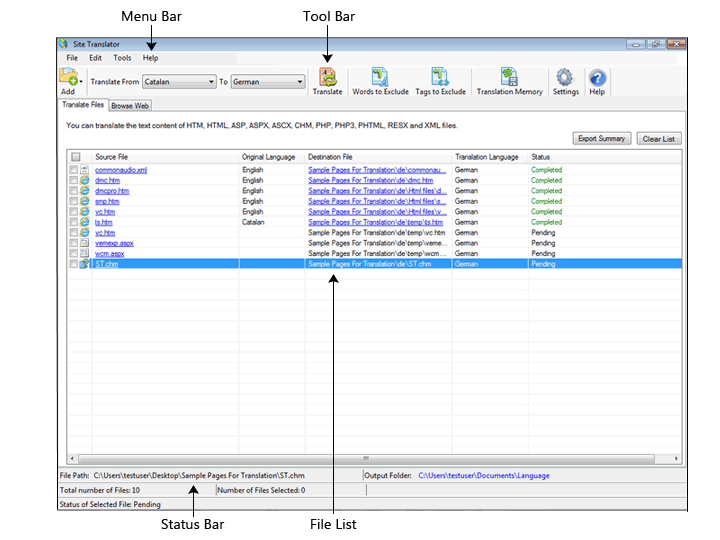
The main application window is divided into the following segments:
- The Menu Bar gives you full access to every feature of the program.
- All the supported languages are displayed in a drop down list on the Tool Bar. Add the files and folders for translation and quickly translate with the Translate button. You can modify the phrases in the translation memory and increase the quality of translation. The words and tags to exclude from being translated can be specified.
- The File List shows you the files and folders that you add for translation. The source files and the translated files are hyperlinked so that you can quickly open and view them. In addition to the links, the original language, the translation language, and the status of the files are displayed in the File List.
- At the bottom of the application window is the Status Bar. It shows the details of the translation such as the path of the source file and link to the output folder location. In addition, the count of the files listed and selected for translation is displayed. The last line displays the translation status of the currently selected file.
|