Folder Shortcuts
All the media files are organized in folders. When the application is launched, a folder with the name "My Recordings" is created in "My Documents". When you create a screen recording, by default it is saved in the "My Recordings" folder. You can create a folder shortcut to any folder that is present on your PC.
How to create a Folder Shortcut
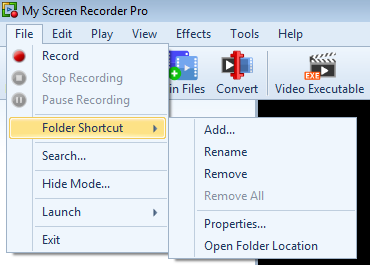
To create a new folder shortcut, click File >> Folder Shortcut >> Add.
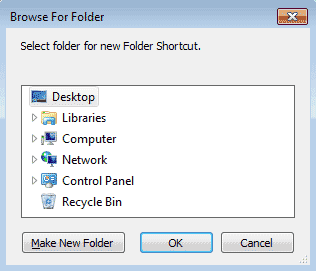
Select a folder from your PC.
Note: You may also create a folder shortcut by dragging and dropping it in the folder shortcut list view.
Changing Folder Shortcut Properties
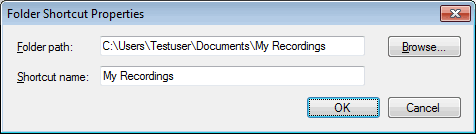
If necessary, you can change the name and location of the folder. Select the folder, click File >> Folder Shortcut >> Properties. Click Browse to change the location.
Renaming a Folder
To rename a folder if necessary, click File >> Folder Shortcut >> Rename.
Note: If a folder is renamed, its name in the File List changes. The actual folder on your PC is not renamed.
Deleting a Folder
To delete a folder, select it, and click File >> Folder Shortcut >> Remove.
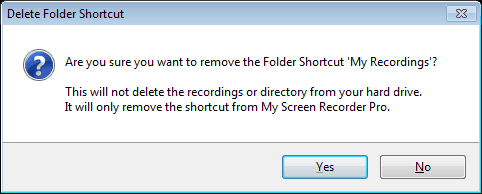
To remove all the newly created folders from the list, right-click the Folder Shortcuts and select the Remove All option. However, the “My Recordings" folder is not removed from the list.
Note: If a folder is removed, its entry from the File List is removed. The actual folder on your PC and its contents are not deleted.
|