Pages:
  
1.Index
2.Getting Started
3.Recording Regions
4.Working with My Screen Recorder Pro
5.Configuring Audio and Video Settings
6.Working with Screen Recordings
7.Distribution Options
 
Converting AVI Files
Publishing Media Files
Automatic Conversion and Publishing
Generating an Executable
Splitting AVI Files
Joining AVI Files
HTML Embedding
8.Resources
 
 
  My Screen Recorder Pro v2.67


My Screen Recorder Pro: Automatic Conversion and Publishing

Automatic Conversion and Publishing

My Screen Recorder Pro allows you to automatically convert screen recordings to a specific format and publish them after they have been created. To enable automatic conversion and publishing:

  1. On the Tools menu, select Settings.
  2. Select the Auto Tasks tab.
  3. For automatic conversion, check the option Enable automatic conversion.
  4. Specify the Output folder where the converted file will be created.
  5. Select the Output format. If the output format selected is WMV then select a Profile and add Video Information by clicking on the Properties button.
  6. To change screen dimensions, click Configure under the Resize Options.
  7. For automatic publishing, check the option Enable automatic publishing.
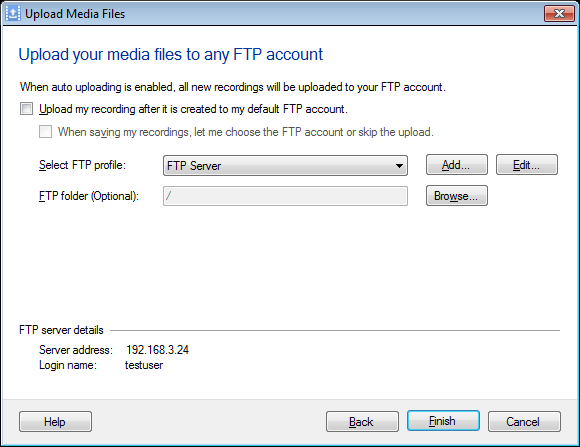
  8. To specify FTP settings, click Configure under the Automatic Publishing.
    1. You will need an account on an FTP server (such as Video Desk).  Enter the address of the server, your login name and password.
    2. Optionally, you may select a folder to upload files to on the server by clicking the Browse button.
    3. Generally, leave Use Passive Mode for logging in checked unless My Screen Recorder Pro is unable to log in to your server.
    4. Check Anonymous login if you are uploading to a server that doesn't require individual accounts with passwords. Note: files uploaded to an anonymous FTP server will generally be visible to and downloadable by anyone.
    5. If you use a proxy server to connect to the Internet, click Configure Proxy Server.  Consult your network administrator for information about your proxy server.
    6. When you're done configuring your FTP settings, click OK.
  9. If you check the After recording confirm Auto Tasks box, every time you make a new screen recording you will be asked whether you want the Auto Tasks (conversion and/or publishing) to take place. If this option is not selected then Auto Tasks will be automatically performed on all screen recordings, without asking you.
  10. Click the Default button to restore all default settings on this page.
  11. Click OK.

    To add existing screen recordings to automatic conversion and publishing list:

  1. Select the files you want to add to automatic conversion and publishing list.
  2. On the File menu, select Add to Auto Tasks.

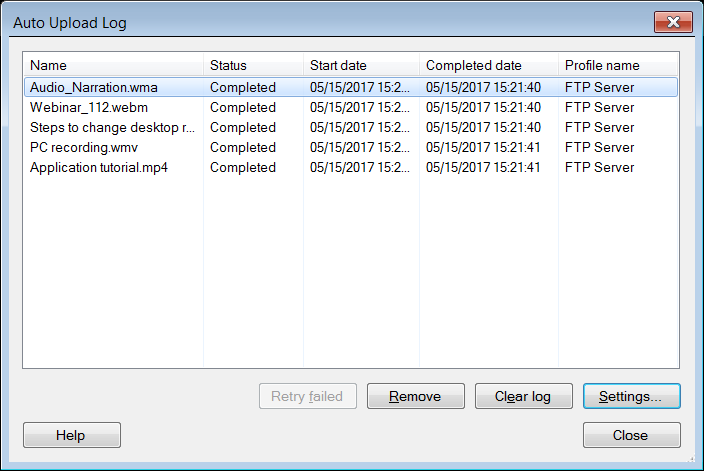
If conversion and publishing are selected then the screen recording will be converted to the selected output format and then this converted file will be published to the specified FTP server.

Read the article: Automate Screen Recordings

Related Topics

Copyright © DeskShare Incorporated. All rights reserved.