Searching and Copying your Screen Recordings
Searching Screen Recordings
To search for a screen recording in a folder:
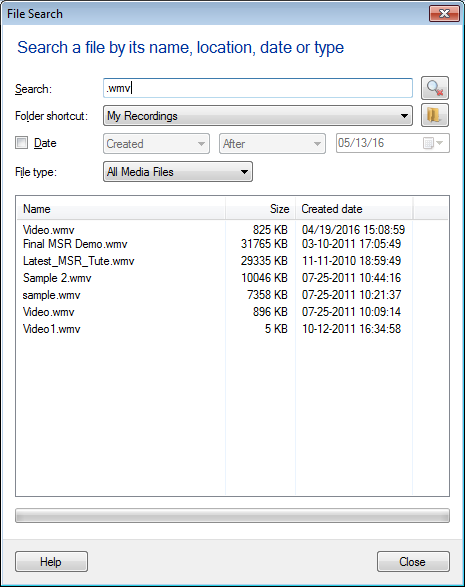
Select the folder in which you want to search your media file and click File >> Search. You can enter a few characters of the filename to begin the search.
Make your searching process faster by entering Date and File Type. If the file is present, it is shown in the search results.
Copying Screen Recordings
To copy or move one or more screen recordings to the clipboard, select the file to be moved. On the Edit menu, click Copy or Cut. Select the folder to paste the files and click Paste on the Edit menu.
To copy or move one or more screen recordings to another folder on your PC, select the file to be moved. On the Edit menu, click Copy To Folder or Move To Folder. Select the folder for the files to be moved.
|