Language:
 
 
Pages:
  
1.Welcome
2.Working with Cameras
3.Triggering Alerts
 
On Motion Detection
At Regular Interval
4.Choose Actions
5.Remote Monitoring
6.Scheduling
7.View Recorded Events
8.System Maintenance
9.Application Settings
10.Get Computer IP Address
11.Resources
 

Security Monitor Pro 4.48


Triggering an Alert when Motion is Detected

By default, Security Monitor Pro trigger an alert when motion is detected.  Security Monitor Pro is equipped with an advanced motion detection algorithm that automatically monitor changes in the images sent by your camera.

To trigger an alert when motion is detected, click Camera >> Manage Cameras >> Edit Camera >> Actions and select the option When motion is detected.
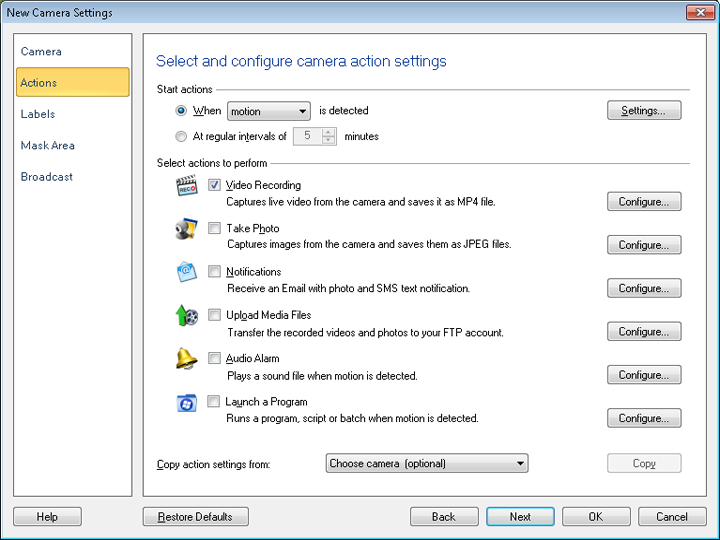
Before starting Monitoring for Motion you can first configure Motion Settings.

Motion Sensitivity

Security Monitor Pro detects motion by comparing images received from the currently selected camera.  Motion detection involves computing the difference between two images.  If the difference between the compared images crosses a certain threshold value then motion is detected and the selected Alert is triggered.  The Motion Sensitivity setting represents this threshold in motion monitoring.

Security Monitor Pro may raise false motion detection alarms because of PTZ movements.  You can avoid such false alarms by suppressing the motion detection during PTZ.  You can specify how long motion detection should be suppressed immediately after PTZ movements.

As is inherent with any machine based operation, motion detection is not 100% accurate.  It may ignore genuine motion at times or report motion when there is none leading to false alarms.  As sensitivity increases, Security Monitor Pro detects the slightest motion, and as sensitivity decreases, it detects only pronounced motion and ignore slight movements.  You may therefore think that higher the sensitivity, the better, but increased sensitivity causes more false alarms.

To improve motion detection accuracy, it is important to select an optimum (as high as possible) motion sensitivity value while keeping the chances of false alarms to a minimum.

Display Motion Area

Security Monitor Pro helps you quickly identify the location in the video where motion is occurring.  When Display Motion Area option is selected, it highlights the detected motion area in red color.  The highlighted motion area is displayed in Video Recordings and Photos.  This can help you to set up the mask area correctly.

Masking an Area to Avoid False Alarms

The Mask Area feature allows you to block motion detection in a particular area.  You can select an area to mask in the preview window.  This reduces the possibility of unwanted triggering of alerts.  For example, you want to monitor your garden but do not want the motion on the road outside it to be taken into account, then you can mask the portion of the preview that shows the road.  Each camera can be masked individually.

To define mask area for your camera, click Camera >> Manage Cameras >> Edit Camera >> Mask Area.
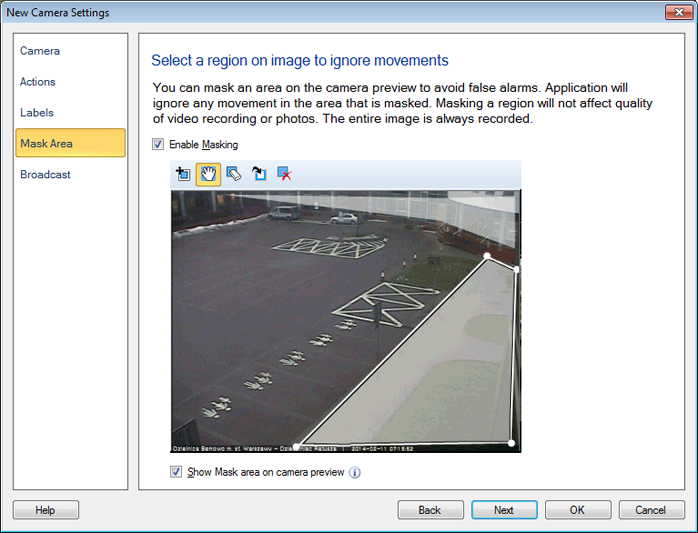
In the dialog that is displayed you can select and mask an area in the preview window.  Check the Enable Masking option.

A rectangular box with columns and rows appears in the Preview window.  Drag the mouse cursor to cover the part of the area that you want to mask in the camera.  If you want to change the mask area, then click Clear Mask.  The same procedure can be followed to unmask an area that was masked earlier.  The Event Log shows an entry informing you that motion will not be detected in the masked area.


Copyright © DeskShare Incorporated.  All rights reserved.