Changing Keyboard Shortcuts
The quickest method to start, stop, pause and resume the screen recording is to use keyboard shortcuts.
To change the keyboard shortcuts, click Tools >> Settings >> Hotkeys.
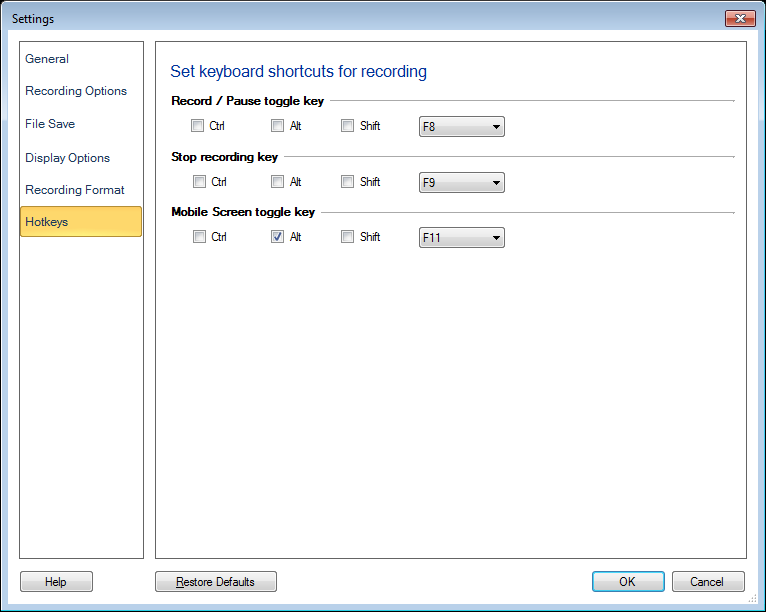
Record/Pause Toggle Key
The default keyboard shortcut to Record or Pause and Resume your screen recording is F8.
Stop Recording Key
The default keyboard shortcut to Stop your screen recording is F9.
You can change the default keyboard shortcuts by selecting different functional keys from the dropdown list.
You also have the option to choose either the Ctrl, Alt or Shift key along with the selected functional key. For example, you can use Ctrl+F12 instead of the F9 shortcut key to Stop your screen recording.
Mobile Screen toggle key
The default keyboard shortcut to record your mobile screen screen is the Alt+F11 function key.
You can change the default keyboard shortcuts by selecting different function keys from the dropdown list. You have the option to choose either the Ctrl, Alt or Shift key along with the selected number key or function key. For example, you can use Shift+F4 instead of the Alt+F11 shortcut key to add or remove your mobile screen preview window on your PC screen.
|