Create and Edit FTP Profile
Using FTP upload you can transfer video recordings and photos to a server and easily access them from a remote location, share among others or view on a website. For example, you can upload your videos and photos to a video hosting services like Video Desk.
To configure FTP Settings, click FTP Upload >> Configure upload options.
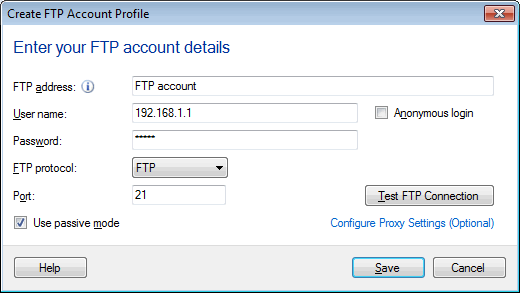
FTP Server Settings
FTP address: Enter the Host Name (Example: ftp.myserver.com) or IP Address of the FTP Server. If you connect to the Internet using a proxy server, provide an IP address only (Example: 192.182.1.81).
Login name: If the FTP Server requires user name, type here.
Password: Enter password required for your FTP account.
Anonymous User: Check this option if you want to connect to the FTP server as an anonymous user. Security Monitor Pro selects the username and password as 'Anonymous' by default. If Anonymous user is checked, you can't enter a User Name or Password.
Port: The Server Port is the port on which Security Monitor Pro will try to connect to the FTP Server. This is normally 21; however, it may be different if you are going through a firewall, or if the FTP Server administrator has assigned the FTP protocol to another port.
FTP Protocol: Security Monitor Pro supports three different protocols to use while uploading videos and photos.
FTP(File Transfer Protocol) – FTP is a protocol used to transfer the files between two PC's or from PC to your Web Server. It uses two different ports for data transfer. Port 21 is used for data transfer and 20 is used for creating a connection between the client and server. FTP does not take any precautions to protect information transmitted during a upload session. This session includes your username, password, and any files to be transmitted in a plain text format.
FTPS (FTP-SSL) - FTPs is an extension to standard FTP and adds security to file transfer. FTPs is split into:
- Explicit FTPs: After establishing the connection, it is required that FTP client should send a specific command to the server for establishing the SSL link. If a client does not request security, the FTPS server can either allow the client to continue insecure or refuse the connection. Default FTP Server port(21) is used.
- Implicit FTPs: In Implicit FTPs, security is automatically turned on as soon as the FTP client makes a connection to an FTP server. In this case, the FTP server defines a specific port for the client (990) to be used for secure connections.
SFTP(Secured File Transfer Protocol) – SFTP is a program that uses SSH to transfer files. It typically runs on port 22. Unlike FTP/S, SFTP does not have the concept of separate command and data channels. Instead both data and commands are transferred in specially formatted packets via a single connection.
Use passive mode: This option is mostly required when you are connecting to the FTP server via a proxy. When you connect to the Internet using a Proxy Server and you receive a 425 Can't open data connection or 500 Invalid PORT Command error during an upload, enable this option.
Test FTP Connection: You can click on this option to see whether Security Monitor Pro can connect to the server.
|