Schedule and Automate your Screen Recorder
My Screen Recorder Pro allows you to create an audio-visual recording of activities performed on a PC. The program has an amazing ability to automate the recording and uploading tasks. It performs the tasks you specify, on its own, without you having to manually begin the process. In this article, we will briefly discuss the various automation features of My Screen Recorder Pro.
There are two ways to automate screen recording: Schedule Recording and Command Line Parameters.
Schedule Recording
You can schedule a screen recording to start automatically at a specified time. You can record your favorite website or anything on your Windows desktop. The recording begins and stops at the time you specify. This is useful in situations when you know the exact time something will happen, for instance, your favorite internet broadcast. The schedule gives you the ability to choose not just the time, but any weekday or combination of days.
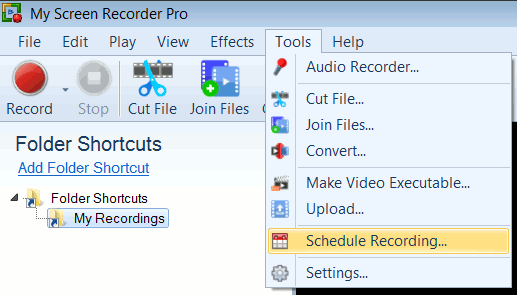
- On the Tools menu, click Schedule Recording....
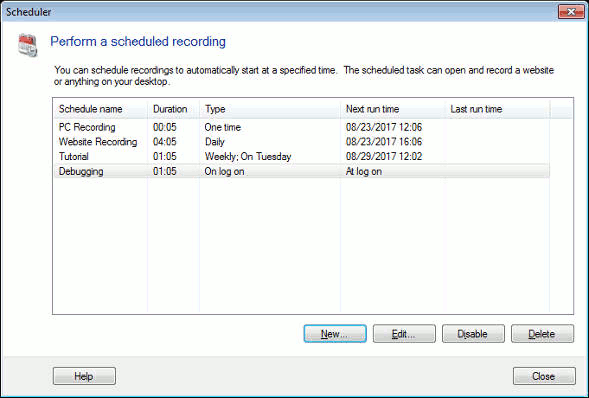
Click New .... A New Schedule Wizard will appear. This wizard helps you to schedule recordings to automatically start at a specified time.
- Specify the name of the task to be scheduled and the output folder where the scheduled recording should be saved. The scheduled recording will be saved with the specified task name appended with the date and time. You can choose to record both audio and video by selecting the option "PC Screen With Audio" or you can record only video by selecting the option "PC Screen Without Audio" in the Recording Type dropdown. Click Next.
- Select the Start date and Expire date for which the scheduled task should be valid and should be invoked. You can select the schedule to be invoked One Time, Daily, Weekly, Monthly or On Log on. Click Next.
- You can select to perform certain actions before starting the recording and/or after completing the recording. These actions act as notifications prior to starting the recording and after the completion of recording.
- If you want to schedule the recording of a website, in the Action dialogue box click New... and select Action as Start a program and the Start Program as Default Web Browser. Then, give the website URL in the Program Parameters box. In this example, we have given the URL of DeskShare. Click OK to save the settings and Finish.
Command Line Parameters
You can start, stop, and pause recording using Command Line Parameters. This feature lets you start My Screen Recorder Pro from another application. You can start, pause and stop recordings without actually opening a My Screen Recorder Pro window or being physically present at the PC you want to record on. You can write your own scripts, and use these parameters to trigger screen recording. This can help you detect a bug or track user activities whenever they access sensitive information.
Automated Uploading
Apart from the screen-recording automation options, My Screen Recorder Pro also has the Auto Upload option that uploads screen recordings on its own without any user intervention.
Your recordings are uploaded in the background while My Screen Recorder Pro continues to record other activities. Automated uploading can save a lot of time when you make multiple screen recordings that have to be regularly uploaded to an FTP server.