|
| Digital Media Converter: Converting Files to Play on iPod |
Converting Files to Play on iPod
To play audio files on your Apple iPod, you can convert them to WAV or MP3 formats using Digital Media Converter. To play video files on iPod, you can convert them to MPEG-4 (iPod) format using Digital Media Converter.
Once the files are converted, they are automatically added to Apple i-tunes installed on your PC. i-tunes is Apple's content management program for the iPod.
To convert audio files for iPod, simply follow the steps given below:
- In the File menu, click on Add Files to add the files files you want to convert.
- On the toolbar, click on the arrow beside the Convert button and from the dropdown list, select WAV or MP3 as the conversion format.
- Click the Convert button again to begin the conversion.
- After the process is complete, the converted file will be saved to the destination specified in Settings.
- The file will be added to i-tunes. Connect your i-Pod and synchronize to transfer the converted file to it.
To convert video files:
- In the File menu, click on Add Files to add the files you want to convert.
- On the toolbar, click on the Convert button and from the dropdown list, select MPEG-4 (iPod) as the conversion format.
- Click the Convert button again to begin the conversion. The PSP Toolkit is required for conversion. Digital Media Converter will ask you to download and install it if not already installed. Click on "Yes" to start the download.
- Select "Run" to start the PSP Toolkit. After the PSP Toolkit setup has been installed, click on the Convert button from the toolbar.
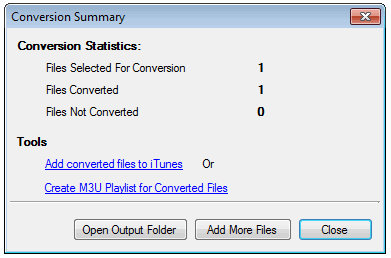
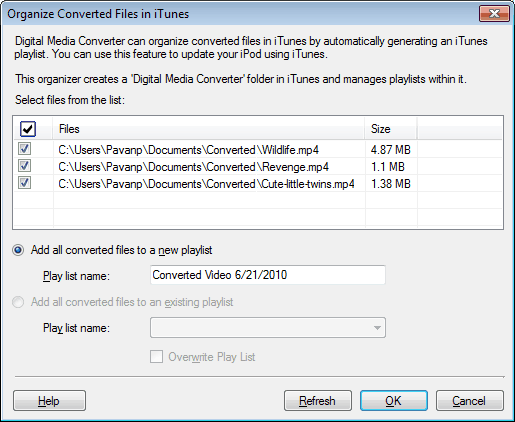
- If Apple iTunes 6.0 or higher is installed on your computer then Digital Media Converter can help you organize the converted files as playlists in Apple iTunes. After conversion, the Organize Converted Files in iTunes dialog pops up.
- To add all converted files to a new playlist, select the Add all converted files to a new playlist option and specify the name of the playlist.
- To add all converted files to an existing playlist, select the Add all converted files to an existing playlist and then select the name of the playlist. Check the Overwrite the playlist box to clear the files already present in the selected playlist.
- Click OK to add all converted files to the specified playlist in Apple iTunes.
- Connect your iPod to your computer so that iTunes can update it with the converted files.
Note:
If you are converting files to MPEG-4 (iPod) format while working on a Microsoft Vista operating system, you might require to run Digital Media Converter with administrator permissions. To do so, close the application. Now restart it by right-clicking on the Digital Media Converter executable and selecting "Run as Administrator".
|