|
| Digital Media Converter: Configuring MP3 Properties |
Configuring MP3 Properties
- After adding files to the list, point to the Tools menu and then Settings.
- Under General Settings, from the Convert To Format box, select MP3.
- Select the Properties tab or Properties button.
MP3 is currently the most popular digital audio format. This high quality compressed audio format can be used across almost every portable music player (for example, the iPod) and also played on personal computers or streamed from Internet servers.
Digital Media Converter features some built-in MP3 presets. These presets are designed to provide the highest possible quality. They have been subject to and tuned via rigorous listening tests. If your goal is quality, these presets are highly recommended over any custom set of parameters. The default setting is the High preset.
Audio Channel
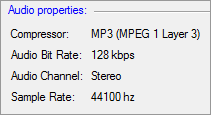
MP3 audio can be encoded in three different channel modes i.e. Mono, Stereo or Joint Stereo. By default, Digital Media Converter will keep the 'Keep Channel same as source' option checked (Joint Stereo can produce smaller files than Stereo with the same sound quality). To change the number of audio channels:
- Select the Channel option. This will show the list of audio channels modes.
- Select the desired audio channel.
All the presets allow changing of the audio channels, except for the Voice Quality preset. Under the Voice Quality preset the audio can be encoded only at mono.
Audio Frequency
Audio Frequency is the number of audio samples to be played per second. Higher frequency values gives better sound quality but also increases the size of the audio. Select better quality for music and lower quality for speech. To change the audio frequency:
- Select the Audio Frequency option. This will enable the list of audio frequencies.
- Select the desired audio frequency.
Frequencies of 8000 Hz and 11025 Hz will allow bit-rates up to 32Kbps. Audio can be encoded at any of the frequencies for all the presets.
Audio Quality
You can choose the desired quality on a scale of 0 (lowest quality/fastest encoding) to 9 (highest quality/slowest encoding). The higher the quality you want to achieve the slower will be the encoding and the larger the files produced. By default, quality value is set to 3 (on a scale of 0 to 9). To change the quality just drag the quality slider to the desired quality level.
The Normal, Low, High, and Very High presets set the audio quality appropriately.
Encoding Modes
Your audio can be encoded in one of two modes:
- Constant Bitrate (CBR): This is the default encoding mode and also the most basic. The chosen bit-rate will be the same for the whole file. This means that every second of your audio will take the same amount of file space to store. Since CBR keeps the same bit-rate for the entire audio file, audio quality may not be consistent. Complex parts will be of a lower quality than the easiest ones. The main advantage is that the final files size will not change and can be accurately predicted. CBR files are required for streaming applications.
- Variable Bitrate (VBR): Your music will be encoded at bit-rates varying between the Maximum and Minimum bit-rates. Different parts of the MP3 file will be encoded using different bit-rates. If the musical passage is a difficult one to encode, the encoder will use higher bit-rates. Hence the encoder tries to maintain the given VBR-Quality in the whole file by choosing the optimal number of bits to use for each part of your music. To configure the VBR Encoding Mode:
- Select the Minimum bit-rate. Minimum bit-rate must be lower than the maximum bit-rate.
- Select the Maximum bit-rate. Maximum bit-rate must be higher than the minimum bit-rate.
- Select the VBR Quality. In Digital Media Converter, the quality increases as you move from 0 to 9. VBR Quality-0 in the application is the lowest and Quality-9 is the highest.
- Select your desired VBR Encoding Method.
R3Mix preset allows for only VBR Encoding mode.
Preserve ID3 Tags
By default, Digital Media Converter retains metadata (like the song title and artist's name) from your source file. To avoid this uncheck the Preserve ID3 Tags [ file description details ] option.
Organize converted music in iTunes
Digital Media Converter can organize converted music in iTunes by automatically generating an iTune playlist. You can use this feature to quickly update your iPod using iTunes. iTunes version 6 or higher is required for this feature.
|