Configure Ogg Vorbis Properties
Ogg Vorbis produces small, high quality audio files using non-patented technology. You can distribute or sell your music that is in Ogg Vorbis format without any restrictions or fees. There are players for OGG files for almost all computers. Some audio players can play Ogg Vorbis files, but it is not widely supported as MP3 and M4A formats.
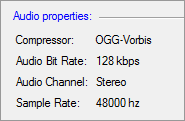
Audio Properties
By default, the compressor that is selected is OGG-Vorbis. The frequency is set at 48000 Hz, bitrate at 128 Kbps and audio channel on Stereo.
Quality
Some built-in Ogg Vorbis presets are designed to provide the best possible quality and file size. They have been tuned using rigorous listening tests. These presets are highly recommended over any custom set of parameters. The default setting is the Normal preset. To use a Preset, select it from the Auto Select settings for list, or drag the slider. Higher-quality encoding takes longer than lower-quality.
Preserve ID3 Tags
Audio files can contain information like the name of the song, artist, album, etc. Application preserves these ID3 Tags. When you play the output file, your media player displays this information.
|