Convert and Transfer Files to Sony PSP
The Sony PlayStation Portable (Sony PSP) has become a very popular handheld game platform. It is designed for gaming and viewing movies. All the major film studios including Disney, Warner Brothers, Paramount and Sony Pictures have published movies specifically for the Sony PSP. It is easy to transfer home movies or videos from your camcorder or even shows that you have recorded on your Media Center PC to your Sony PSP. Digital Media Converter can convert and transfer video files from your PC to the PSP device and it can also copy PSP MPEG-4 files located on your PSP device to your computer.
Getting Video's on your PSP
After adding files to the conversion list, click Formats >> Sony PSP (MPEG 4). If you want to change the dimensions of the video, click on Configure. Click Start Conversion.
To set up your PSP for transferring files, connect the PSP to your PC with a USB cable and select "USB Connection". After the conversion, the " Export to PSP " dialog is displayed prompting you to export the converted files to your PSP device.
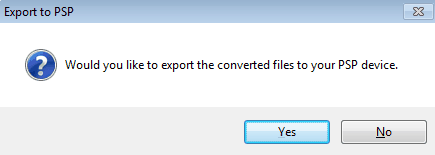
Connect your PSP device to the PC and click Tools >> Export to PSP. The PSP File Manager dialog will be displayed showing two columns.
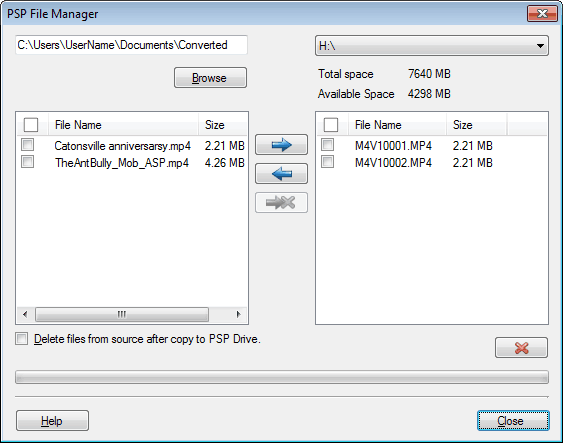
In the left column, the list of converted files is displayed. Click the  icon to transfer the files to your PSP device. The transferred files are displayed in the right column. MP4 files are copied along with the THM files to your PSP device. icon to transfer the files to your PSP device. The transferred files are displayed in the right column. MP4 files are copied along with the THM files to your PSP device.
To copy MPEG-4 files from your PSP device to your PC, click the  icon. icon.
You can disconnect your PSP device and view your videos.
Note: If you are converting files for the PlayStation Portable while working on a Microsoft Windows 7 / Vista operating system, you might need to run Digital Media Converter Pro with administrator permissions. Restart the application by right-clicking the executable and click "Run as Administrator".
Setting up PSP's Video Directory Structure
Before copying over files, make sure you have the specific directory structure below on your PSP device. The videos must be present in the directory MP_ROOT >> 100MNV01. For example, if your PSP drive is F:\ then the directory structure as seen in the image should exist.
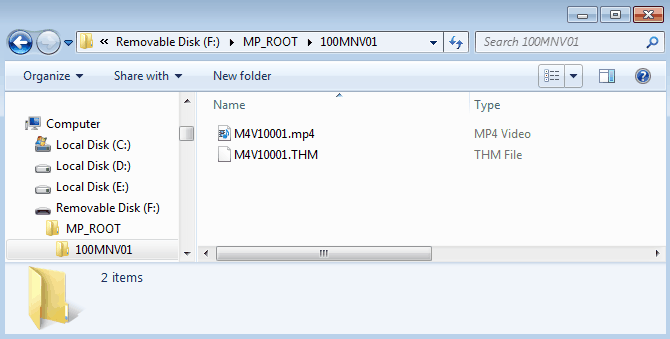
Note: If this directory structure does not exist, then you will have to create it.
Double click the Memory Stick drive or the PSP drive from the explorer. Create a new folder with a name MP_ROOT. Inside this folder, create another folder named 100MNV01.
The 'PSP File Manager' will not create the directory structure. Unless you copy your files to this folder on the PSP, your files will not play back on the device. For more details, you can refer to the Sony-PSP's User Manual.
|