Changing IP Camera and Webcam Properties
Security Monitor Pro allows you to view and configure your camera properties. The camera properties depend on the manufacturer and model number of the camera. The basic properties are the same for most cameras. If you feel that your camera settings are not optimized for the environment you are monitoring, you can experiment and see which settings provide the best results.
For example, if you are monitoring a poorly lit area, you can try increasing the brightness. On the other hand, if you are monitoring a bright area like the inside of your store, then you can try changing the backlight compensation.
You can configure Camera Properties, Video Properties and Audio Properties for your camera.
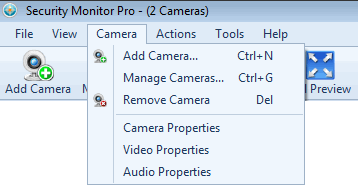
Changing Camera Properties:
- IP Cameras: For IP cameras, a camera property web page is open in your Web browser. You can configure the settings for each of your cameras on separate Web pages. The instructions on the web page will explain how to change the properties such as image quality, image resolution, date and time settings etc.
- Webcam: You can change your Webcam camera properties like brightness, contrast, flickering and backlight compensation.
To change Camera Properties:
Changing Video Properties:
For Webcams, Security Monitor Pro will open the video properties page window within the application. Webcam properties are driver dependent.
To change Video Properties:
Changing Audio Properties:
For Webcams, Security Monitor Pro allows you to adjust the volume level of the audio device.
To change Audio Properties:
|