DeskShare homepage
.
  Resources  
 
 
Pages:
  
1.Welcome
2.Getting Started
3.Working With Text Speaker
4.Troubleshooting Speaking or Converting Documents
5.Keyboard Shortcuts
6.Resources
 

Text Speaker 3.12


Text Speaker

Welcome to Text Speaker

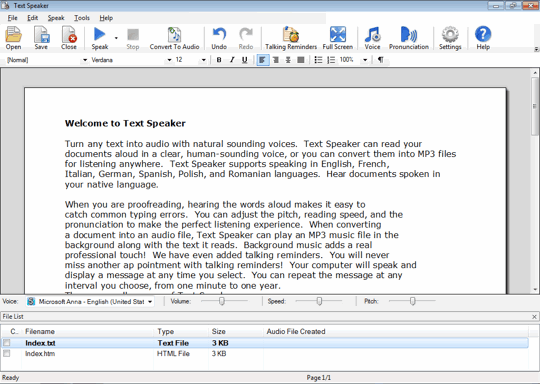
This advanced text-to-speech application turns words into audio with natural sounding voices. Listen to text documents instead of straining your eyes! Text Speaker can read your documents aloud, or you can convert them into MP3 files for listening, anywhere at anytime! Just open a document and click Speak to hear it read in a clear, understandable human-sounding voice, or click Convert to Audio to create a WAV or MP3 file to listen to later.

Use one of the many free voices, or purchase the high quality professional voices.  The professional voices sound so good you may think they're human!

Text Speaker supports English, French, German, Portuguese and Spanish interfaces as well as speaking those languages. Now you can hear documents spoken in your native language.

Have the computer "read aloud" any text on your screen. All your programs can have a voice. Select the text and press a keyboard hotkey and Text Speaker will read the text. When you're proofreading, hearing the words aloud makes it easy to catch common typing errors. You can adjust the pitch, reading speed, and pronunciation to make the listening experience a perfect one.

You'll never miss another appointment with talking reminders!  Your computer will both speak and display a message at any time you select.  You can repeat the message at any interval you choose, from one minute to one year. You'll hear the messages even if you don't run Text Speaker that day!

Since Text Speaker has word processing features, you can create and edit documents without the need for any other program. You can even edit and save Microsoft Word documents without needing a copy of Word installed.

Add background music of your choice. When converting a document into an audio file, Text Speaker can play an MP3 music file in the background along with the text it reads. Background music adds a real professional touch!

Whether you're creating digital presentations or adding a voice-over to your Flash animation, use Text Speaker to create audio narration in a pleasant, human-sounding voice. No studio time or hourly fees to a voice actor—just turn your script into an MP3 or WAV file in seconds. When you change the script, you can update audio narration just as fast! You can even make them sound like a conversation, by using multiple male and female voices in a single document.

You can even create mp3 files to update your voice mail message. With Text Speaker, creating and changing spoken messages is as easy as editing a document.

Features

With Text Speaker you can:

  • Listen to any text as spoken words
  • Read selected text from any program aloud
  • Listen to text in several languages, including English, Spanish, German, and French
  • Read the Text Speaker interface in English, French, German, Portuguese, or Spanish
  • Convert text into WAV or MP3 files for later listening
  • Never be late with talking reminders
  • Create audio outlines
  • Open and read Microsoft Word (DOC and DOCX), PDF, RTF, HTML, and TXT files
  • Add background music to spoken words
  • Choose from a wide assortment of free voices, or purchase quality professional voices
  • Registered users receive two AT&T Natural Voices, a $29.99 value
  • Adjust reading speed, pitch, and pronunciation
    Copyright © DeskShare Incorporated. All rights reserved.