Shopping Cart | Member
Language:
  Resources  
 
 
Pages:
  
1.Welcome
2.Getting Started
3.Working With Text Speaker
 
Basic Operation
Speak Text Aloud
Speak Selected Text
Converting Text to Audio
Changing the Voice
Adjusting Volume, Speed, and Pitch
Adjusting Emphasis
Adjusting Pronunciation
Create Audio Outline
Using Bookmarks
Spelling Out Text
Changing the Interface Language
Talking Reminders
Settings
4.Troubleshooting Speaking or Converting Documents
5.Keyboard Shortcuts
6.Resources
 

Text Speaker 3.14


Text Speaker: Talking Reminders

Talking Reminders

To avoid missing important appointments, you can create Reminders in Text Speaker.  Once scheduled, a Reminder will play even if you Text Speaker is not running at the scheduled time.

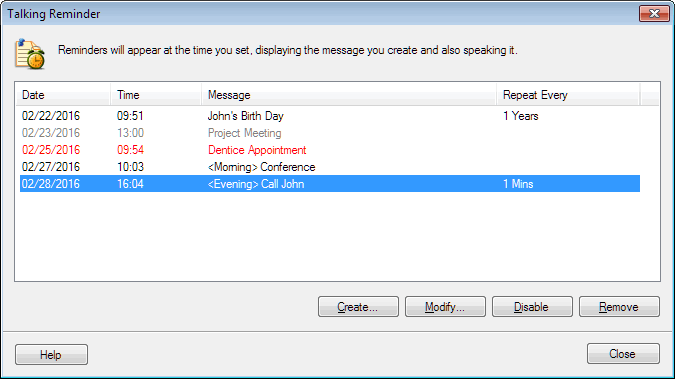
To create a Reminder, click Tools >> Talking Reminders.  The Talking Reminder window appears:

Reminder Window

Click Create to create a Reminder.  You can Disable a reminder, in which case it will not be spoken but will remain in the Reminder window.  If you press Remove the Reminder is permanently deleted from the list.  You can Modify an existing Reminder by either double-clicking it or clicking the button.

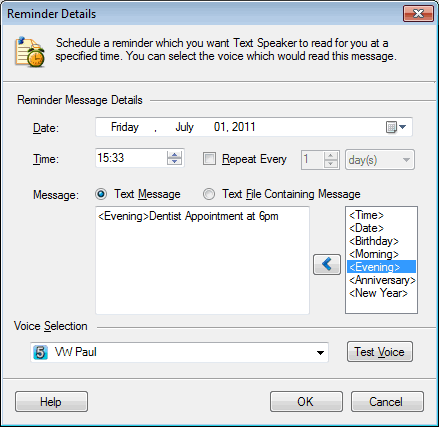
When you create or modify a Reminder, the Reminder Details window appears:

Reminder Details

You can choose any date and time at least one minute in the future.  You can also have the message repeated at regular intervals.  For instance, if you have a staff meeting every Monday, you would choose Repeat every 7 days

You can either type a message in the Reminder Details window, or have Text Speaker read a document in plain text (.txt) format.

Special time-saving codes can be used in your message.  For instance, if you insert the <Time> code, Text Speaker will say the current time, e.g. "Five Forty Five PM."  Similarly, <Date> inserts the date.  The special occasion codes wish someone a happy day, for instance, "Happy New year".

The Voice Selection starts as the current voice in Text Speaker.  You can change this to have any voice read the reminder message.

Click Test Voice to hear your message read in your selected voice.  If everything is correct, press OK.  As soon as the OK button is pressed, the Reminder is scheduled. 

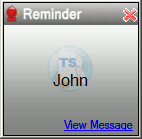
At the scheduled time, your message will be spoken aloud.   A visual reminder will also appear at the bottom right of your screen:

Visual Reminder

Copyright © DeskShare. All rights reserved.