Adjusting Pronunciation
The pronunciation of a word is defined in terms of phonemes. A phoneme is the smallest unit of pronunciation. For instance, the word "cut" has three phonemes, k ah t.
When listening to an article, catching incorrect pronunciation becomes very easy. You can alter the way Text Speaker pronounces a word as you listen to the text. For instance, the word "record" is pronounced ree kord when it is a verb ("I will record your voice") and reh kerd when it is a noun ("I will keep a record of this interview").
To change the way a word is pronounced, select it and click Tools >> Pronunciation.
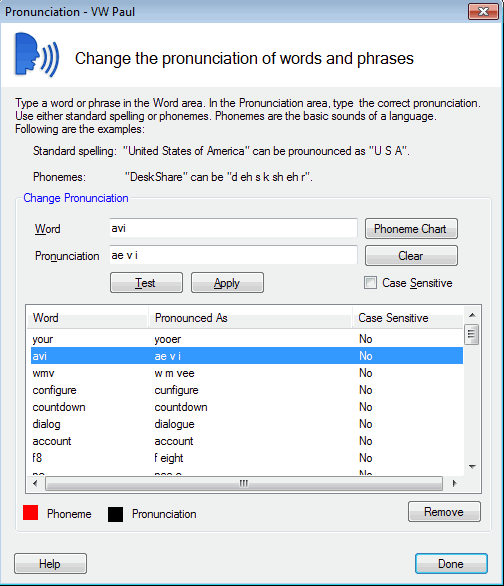
Enter the word you are correcting. The way you want the word to be pronounced should be entered in terms of phonemes.
Text Speaker includes the phonemes of the English language (and many other European languages). To see a list of phonemes available, click the Phoneme Chart button.

The phonetic alphabet also includes symbols for stress (the difference between PRES ent and pres ENT ), breaks between syllables of a word, and breaks between phrases and sentences.
Enter the phonemes for the word and click Test to hear the pronunciation. You may need to adjust it, for example by substituting a different vowel or changing the emphasis (stress).
Test the word for its pronunciation and click Apply if it is correct.
You may want a word to be pronounced in one way when in lowercase and in some other way when in upper case. For instance, you could have MB pronounced "motherboard" and mb pronounced "megabytes". On enabling the option Case Sensitive, the pronunciation applies to exactly the same word that is entered.
Spelling Out Text
You may want Text Speaker to spell out a word, rather than pronounce it. For instance, a computer program may have a "Graphical User Interface", which is abbreviated as "GUI". If you would like Text Speaker to say "G U I" instead of "gooey" when it reads this abbreviation, you could mark it to be spelled.
Select the word or phrase to be spelled. Click Edit >> Spell Selected Word/Phrase. The text is enclosed within the tags <spell> and </spell>.
Note that if a word should always be spoken as the letters, you can change the pronunciation of that word. This setting automatically works on all occurrences of the word in all the documents.
|