Video de Split
Utilizando el Video de Split comando, puede dividir cualquier clip de película en pedazos más pequeños. A diferencia de Detección de escena Video Split le permite elegir la posición exacta para dividir en forma manual. Este proceso puede llevar más trabajo, pero le permite dividir un clip en puntos que no son cambios de escena.
Clips de película sólo en el guión gráfico se pueden dividir. No se puede dividir archivos de película en el Colección de fotos y video. Le puede dividir los clips que fueron creados usando la detección de escena. No se pueden dividir imágenes fijas (imágenes de mapa de bits como archivos GIF y JPEG).
Clips creados mediante Video de Split funciona exactamente igual que cualquier otro clip de película y puede ser arrastrado, cortar, copiado y pegado. Puede agregar efectos y música para ellos.
Para dividir un clip de película, con el botón derecho sobre él y seleccione Dividir el vídeo... en el menú. El Split Aparecerá la ventana.
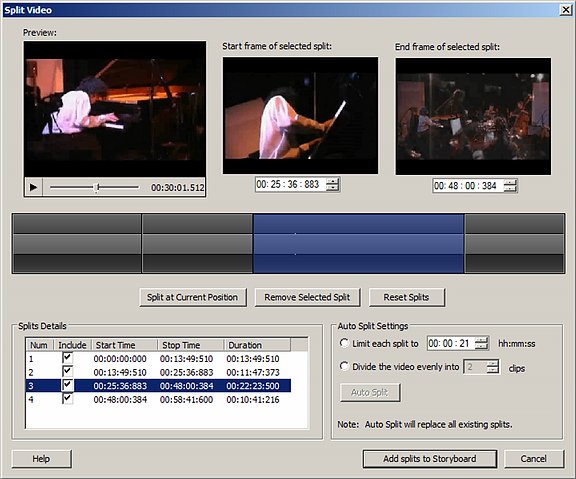
Un "split" es un segmento del video clip, con una hora definida de inicio y finalización. Cuando el Añadir divide al guión gráfico se presiona el botón, todos incluido divisiones se agregará al guión gráfico como clips de película independiente y se quitará el clip original que está realizando una división.
Hay tres maneras de crear divisiones:
- La vista previa
- La barra de tiempo
- Auto Split
Separación mediante la vista previa
La vista previa incluye el área de previsualización principal, la Fotograma de inicio de división seleccionada y la Fotograma seleccionado dividido. Al hacer clic en el Split botón, la parte del clip que está entre el fotograma de inicio y final está marcado como una división. Puede cambiar los tiempos de inicio y final de la división mediante los controles de tiempo bajo Fotograma de inicio y Fotograma final.

También puede dividir el clip en cualquier punto, mueva el marcador de posición el de vista previa. Puede mover el marcador bien arrastrando con el ratón, o tocando y pausar la vista previa. Cuando haga clic en Split, el clip se divide en la posición actual del marcador.
Separación mediante la barra de tiempo
En el centro de la Split ventana es la barra de tiempo:
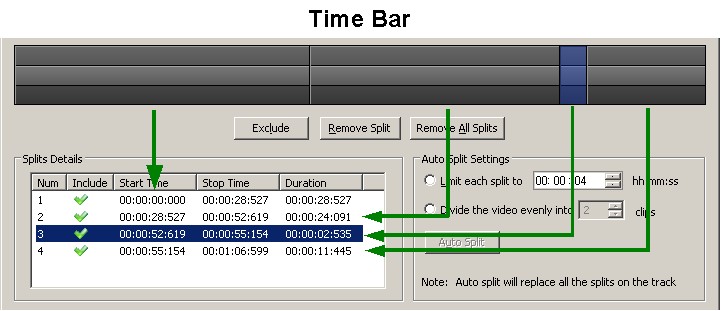
En la ilustración, la barra de tiempo muestra cuatro divisiones. Split 3 está seleccionada. Observe que la barra de tiempo se divide en tres capas. Las capas externas de color más oscuro pueden utilizarse para la selección. Hacer clic en ellos seleccionado la división que ha pulsado. Cliciing sobre la elevada capa interna de la barra de tiempo inmediatamente divide el clip en ese punto. También puede seleccionar una división haciendo clic en su línea en el Detalles de Split. La división seleccionada es de color azul en la barra de tiempo y los detalles.
Cuando mueva el ratón sobre la barra de tiempo, la vista previa muestra el punto correspondiente a la posición del ratón. Es decir, si tiene un clip de 2 minutos, y mueva el ratón sobre el centro exacto de la barra de tiempo, la vista previa mostrará el fotograma en posición 1:00 minuto.
Separación mediante Auto Split
Mediante Auto Split, puede dividir el clip en piezas basadas en su longitud. Tienes dos opciones:
- Si Limitar cada división se selecciona, se Auto Movie Creator dividir el clip en trozos del mismo tamaño. Por ejemplo, si selecciona "00: 01:30" para las horas, minutos y segundos (HH) de la longitud, el clip se dividirá en pedazos de 90 segundos. Si no dividen de forma regular, el último segmento será más corto que los otros.
- Si Dividir uniformemente el video es seleccionado, se puede cortar el clip en trozos que son todos exactamente el mismo tamaño. Simplemente elija un número de clips para dividir el video en.
Una vez haya elegido su Auto configuración de Split, Haga clic en Auto Split y el Detalles de divisiones área y barra de tiempo mostrará las nuevas divisiones que ha creado. Nota: Auto Split hará que cualquier manuales divisiones han hecho que se pierdan.
Incluir/excluir
No tienes que añadir todas las divisiones al guión gráfico. Se agregarán sólo incluye divisiones. Para excluir una división, simplemente selecciónelo y haga clic en el Excluir botón. Si se selecciona una división de excluidos, el botón cambia a Incluir, y haga clic en que vayan a revertir el efecto, causando la división seleccionada ser incluida y agregado al guión gráfico.
Eliminación de divisiones
Para quitar una división, simplemente selecciónelo y haga clic en el Quitar división botón. Para quitar todos divisiones y empezar el proceso, haga clic en el Quitar todos los Splits botón. Esto es diferente a la exclusión de una división, en cuyo caso todavía está marcado como una división en la Detalles y en la barra de tiempo, pero no agrega al guión gráfico.
Agregar divisiones al guión gráfico
Cuando haya creado y incluido sus divisiones, haga clic en Añadir divide al guión gráfico. El clip de película original se reemplazará por varios clips, uno para cada incluido split.
Combinando Splits
Puedes combinar algunas de las divisiones que haya agregado al guión gráfico en un único clip, que puede ayudar al agregar efectos, narración o música. |