Connecting
a Digital Camera to Your Windows PC
The digital camcorder is
one of the most popular home products of all times.
Camcorders have made shooting videos simple, quick and
fun. You can make your home videos even more
enjoyable by copying them to your PC, editing them,
adding titles and removing those unwanted scenes.
Video editing software like
Video Edit Magic can help you edit your home movies
to make your memories last forever. You can also
convert the edited videos to an appropriate format and
create a DVD or upload them to an Internet server and
share your memories with family and friends.
However, many users face
problems while connecting digital camcorders and cameras
to their PCs. This article aims to guide you
through the process of connecting a digital camcorder to
your Windows PC.
Checklist for
connecting a Camcorder to your PC
To connect
your camcorder to your Windows PC, you require:
- A FireWire or USB Port on your PC.
- Microsoft � DirectX version 9.0c or higher.
- Appropriate
connecting cables (usually bundled with the
camcorder).
FireWire Port
and USB 2.0 Connection
A FireWire Port (also
known as IEEE 1394) allows users to connect digital
video camcorders and other peripheral devices to their
PCs, and transfer videos or other data at high speeds.
Most digital camcorders also have a USB 2.0 connection
and this USB connection can be used to capture the video
as well as the photo snaps taken by the camcorder.
Be sure your PC has a USB 2.0. While a USB 2.0
device can transfer data using a USB 1.1 connection, the
transfer rate will be dramatically lower, and video
capture may not be successful.
Most new PCs have a
FireWire port or a USB 2.0 connection available.
If your PC does not include these ports, you will need
to purchase a FireWire expansion card. These cards
can be bought at any computer store and are inexpensive.
Microsoft �
DirectX �
DirectX is a Windows
technology that enables higher performance in graphics
and sound. For older operating systems, you should
upgrade Direct X. This will ensure that the
FireWire will function properly with your digital
camcorder. You can
download the latest version of DirectX from
Microsoft's website.
Connecting
Cables
There are are
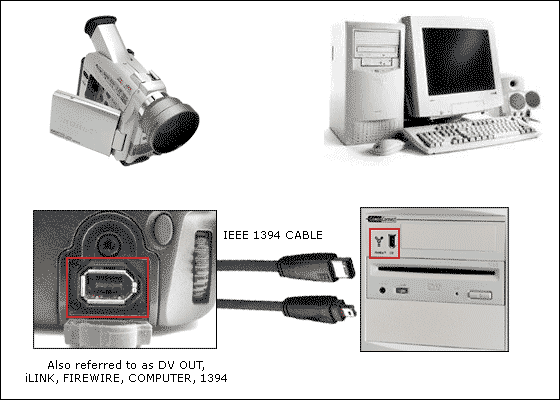
two types of FireWire connectors– 4 pin and 6 pin.
The FireWire port on the
PC usually has 6 pins. Two pins are for providing
power to FireWire devices like printers, scanners or
external memory. A digital camcorder’s FireWire
port (usually called DV out or i.Link) usually has 4
pins as the camera does not need to power other devices.
This means that in most cases you would need a FireWire
connecting cable with 4 pins (for DV out of camcorder)
on one end and 6 pins at the other end (for your PC).
Connecting your
Camcorder to your PC
Physically connecting
your camcorder to your Windows PC using a FireWire port
is easy. Plug the IEEE 1394 connecting cable into
the PC and the camcorder. We recommend making the
connection before turning on the camcorder. When
you turn on the camcorder, it should be automatically
detected by Windows.
TROUBLE SHOOTING
Many camcorder users have
faced problem connecting a camcorder to their PC.
One of the most common problems is “nothing happens”
after connecting the camcorder to the PC. The New
Hardware Wizard does not run and Windows fails to detect
the camcorder.
This can mean one of the
two things: Either the DV port on the camcorder (or
computer) is not working or the FireWire cable is
faulty. Try a different FireWire cable. If
the camera is still not detected by the PC, try
connecting it to a different PC. If the Camcorder
is still not detected, then your camera's DV port is
most likely at fault.
Confirming that
the FireWire Port on you PC is working fine
You can check the status
of the FireWire port with the Device Manager. To
open the Device Manager,
right-click on
My Computer and then click on
Properties. Select the
Hardware tab and click on
Device
Manager. If you cannot see the FireWire
controller (probably listed under "IEEE1394 Bus host
controllers") in the list, then it is not properly
installed. If you see a yellow exclamation mark,
then you need to install the drivers, which are usually
on a CD that comes with the FireWire card. (These
instructions are for Windows XP. They will vary
slightly for other versions of Windows.)
Importing your
Videos from the Digital Camcorder to your PC
You can use Video Edit
Magic’s capture tool to import all your video and audio
files from a digital camcorder. The instructions
for video and audio capture are
here. After importing, you can edit these
files using Video Edit Magic.
Now you are ready to
learn about Video Editing. You can find additional
information and articles on Video Editing on our Resources page.