Getting Edited Videos out of your PC
Rapid growth in technology has given us a wide
variety of options for distribution and sharing of video content. To
effectively distribute
movies and make an impact, you first need to
know your viewers. The simple question “What will most of my
viewers use to see my video?” needs to be answered. Once you identify the
setup that is ultimately going to be used, then making a choice is not that
difficult.

Perhaps the most important step in a movie project is the distribution. This article aims to discuss the most popular distribution
options available, and how you can use
Video Edit Magic to make movies in different formats.
Exporting to Digital Video Tape
Though the idea of exporting videos back to your
camcorder sounds strange, it really has some great advantages. PC Digital Video
Tape is an excellent medium for sharing your edited home videos with family and
friends as you can play them through your camcorder or any digital VCR that can
accept 8mm tape. This choice is ideal when you are on the move, as you can
carry your Digital Camcorder and its connectors along, and hook it up to any TV
set
for playback without the need for any other hardware.
Once you have edited your videos, make the movie in
DV-AVI format.
While making the movie
with Video Edit Magic,
ensure that the DV-AVI format
(NTSC or PAL) matches
your camcorder standard. Then connect
your camcorder to your PC using the FireWire port, and use the Export tool to export the movie to
the camcorder.
Internet Options
The web is fast becoming the medium of choice for
distributing video content. The major advantages
of using the Internet
for distribution are
cost effectiveness
coupled with tremendous
reach. So, if you
want to distribute
training videos to
colleagues, marketing
videos, or videos of
special events like
parties, you can upload
the videos onto a web
server, or e-mail them.
For these options you
would make the movie in
Windows Media Video (WMV)
format.
The Windows Media format is
characterized by small size and streaming capabilities.
This format has great
flexibility. With Video Edit Magic,
you can save your edited project in different profiles (combinations of
settings). These profiles choose the optimum settings
for the intended use.
To choose the best
profile for video
distribution, you must
understand your viewers'
Internet capabilities.
Windows Media Format can
also specify display
information like Title,
Author, Rating,
Description and
Copyright. This
information is displayed
by most media players
during playback.
DVD and VCD
DVDs and VCDs are probably the most popular media
for distribution
currently. VCDs are excellent in terms of cost and can be played on the
PC as well as on most DVD players, while DVDs offer more space, higher quality,
and other advance authoring capabilities.
While creating content for distribution using DVD
and VCD, you need to conform to certain specifications. DVD
(and SVCD) files use MPEG2 video, while VCD files are MPEG1. Video Edit Magic provides
predefined options for creating
all three, so all you need to do is to specify the
type of DVD or VCD you want. If most of your audience resides in North America,
choose NTSC as the picture standard, since the hardware (DVD or VCD
players) in North America are NTSC based. Select PAL for a European audience.
Once your movie is made in the appropriate format,
use burning software to burn the movie on to the VCD or DVD discs.
Making video content for
distribution using Video Edit Magic
The Make Movie Wizard in Video Edit Magic
is a simple interface to
all the options you need
for successful
distribution. Once
you have finished
editing your videos, and
have decided on the
format, use the Make
Movie Wizard to create
your distribution files:
- On the File Menu, click on Make Movie.
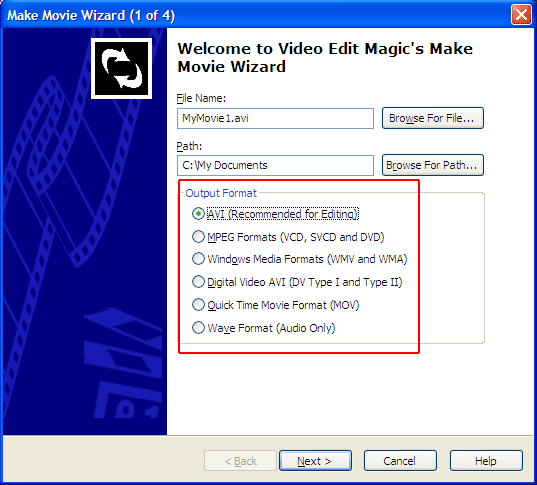
- Select the appropriate Output Format and click on Next.
- Depending upon the format you have selected, choose settings. Remember your audience's requirements!
- Follow the instructions on your screen to complete the make movie process.
Worldwide, there's a growing demand for and expectation for video content. Video Edit Magic gives you an easy way to meet these demands, and distribute high quality videos to reach
a greater audience.