Video Dimension, Aspect
Ratio and DVD
This article discusses
how you can use
Video Edit Magic to handle different
video clips when making
a DVD. It also
discusses video resizing
techniques that you can
use to fix problems that
arise due to mixing
videos with varying
video dimensions and
aspect ratios in the
same timeline.
Understanding Video
Dimensions
One of the most
important visual
characteristic of any
video is its width and
height. The width
and height of videos are
usually measured in
pixels and are
collectively termed as
the "
dimensions"
of the video.
Thus, if a video is 320
pixels wide and 240
pixels in height, it is
said to have dimensions
of 320 x 240 pixels.
The dimensions selected
for a particular video
will often depend on the
way it is distributed.
Videos that are meant to
play over the internet
usually have lower
dimension like 320 x 240
pixels. On the
other hand, videos that
are meant to play on the
desktop have higher
dimension like 640 x 480
pixels. High
Definition Television
(HDTV) videos have an
even higher dimensions
as high as 1920x 1080
pixels.
Understanding Aspect
Ratio
The
aspect ratio of a video is the ratio
of the video's width to
the video's height.
A video with dimensions
of 320 x 240 pixels has
an aspect ratio of 4:3.
That is, the width is
1.33 times as large as
the height. Video
that is 640 x 480 also
has an aspect ratio of
4:3. Notice that
two video clips can have
totally different sizes
but the same aspect
ratio.
Standard aspect ratios
have been adopted for
both computer monitors
and TV sets. The
following table
summarizes the important
ones:
Type of Video Aspect Ratio
Normal
Television
and PC
Monitors
4:3
High-Definition
Television
and
Wide-Screen
Monitors 16:9
Cinemascope
Movies 2.21:1
Television Picture
Standards
There are three TV
picture standards, which
are used in different
countries. The
standards define a
video's dimensions and
its frame rate (the
number of times the
picture updates every
second).
This table
lists the standards:
Picture Standard Followed By
NTSC America and Japan
PAL Most of
Europe and
Asia
SECAM
France
DVD Video
DVD videos are
now the dominant
medium for movies
and TV shows.
To create a DVD that
will play in any DVD
player, it must
contain video
encoded using the
MPEG 2 compression
system, with
specific dimensions
as dictated by the
relevant picture
standard. For
example, a DVD
playable in America
contains MPEG 2
video with
dimensions specified
by the NTSC Picture
Standard.
The dimensions as
defined by the Picture
Standards for DVD videos
are as follows:
Picture Standard DVD Video
Dimension
NTSC 720 x 480 pixels
PAL 720 x 576 pixels
DVD Video and Display
Aspect Ratio
Both NTSC and PAL
videos have aspect
ratios that do not
match aspect ratio
for Television, HDTV
or Cinemascope
movies. Then
how can you play
back a DVD and see
the video in the
correct aspect
ratio? Each
DVD video has a
Display Aspect
Ratio, which
instructs the player
(DVD player or
software program)
what aspect ratio to
use when playing
back the video.
If DVD video is
intended to be
played on standard
television, it has a
Display Aspect Ratio
of 4:3. Even
though the
dimensions of the
DVD video are either
720 x 480 pixels or
720 x 576 pixels, it
is displayed with an
aspect ratio of 4:3.
This lets DVDs be
played with the
correct aspect
ratio, even though
all their video is
stored with standard
dimensions.
Resizing Videos
In Video Edit Magic,
when you create a video
meant for DVD video then
you must select either
720 x 480 pixels
(NTSC) or 720 x 576
pixels (PAL) as the
movie's dimensions.
The video clips and
images that you add to
the Timeline will not
necessarily be in the
same dimensions or
aspect ratio as the
final movie. To
fit these video clips
into the dimensions
specified for the final
movie, Video Edit Magic
resizes the video.
There are many things to
consider when you resize
a video. To demonstrate,
we will use a still
picture instead of a
video. This will
help you understand the
changes that occur in
shapes when videos are
resized.
As illustrated in
example 1, above,
resizing the video to a
larger dimension caused
some pixilation.
However, the pumpkin's
shape is still a
circle because the
aspect ratio did not
change (4:3 in both
cases). In all
other examples, the
resizing involves
changing the aspect
ratio. Because of
this, the circles have
turned elliptical or
oblong.
Changing the aspect
ratio of a video can
make people look
distorted, either too
narrow or too wide.
This is not acceptable
(unless you do it on
purpose for a humorous
effect).
Fixing Resize Problems
In Video Edit Magic, you
can use the video clip's
Stretch Mode property to change
the way a video resizes.
Let us try fixing the
problems that we
demonstrated using the
images above. You
can fix videos in
exactly the same way.
First, example number 3:
After adding the video
clip to the Video 1
track of the Timeline,
right-click the clip and
select Stretch Mode.
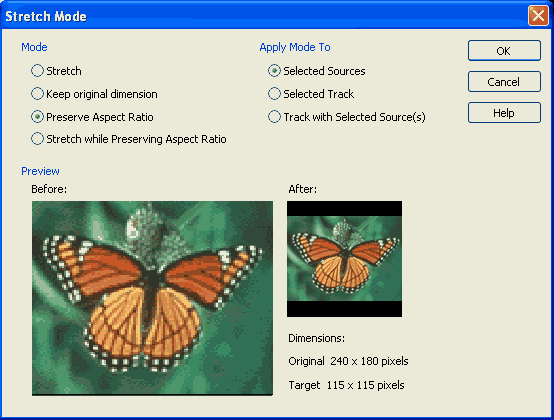
The following table
shows the effect
different stretch modes
have on the way Video
Edit Magic resizes the
video (and images).
The original image is
the one illustrated in
example 3.
| Stretch Mode |
After Resizing |
Comments |
| Stretch |
 |
You have
seen this
before.
The circle
turns
elliptical.
In movies,
people will
appear
really fat. |
| Keep
Original
Dimension |
 |
Circles
remain
circular.
The original
dimension of
the video is
maintained
and the
video is
centered
horizontally
and
vertically.
In our
example, the
width of the
video is
smaller than
the width of
the final
movie.
A black
background
appears on
either ends
of the
video,
filling the
space that
the original
does not
cover.
The height
of the
original
video is
slightly
larger than
the
project's
height.
Therefore,
some of the
top and
bottom are
cropped.
|
| Preserve
Aspect Ratio |
 |
Circles
remain
circular.
The original
video is
resized so
that either
the width or
the height
matches the
project's
dimensions
exactly.
In this
case,
the height
fits and the
video
centers
horizontally
within the
project's
width.
This stretch
mode always
fits the
entire
original
image into
the final
movie with
no cropping,
and
preserves
the original
aspect
ratio. |
| Stretch
while
preserving
Aspect Ratio |
 |
This stretch
mode is an
extension of
"Preserve
Aspect
Ratio".
The original
video is
resized so
that no
"letter
boxing"
(black
areas) is
visible.
If the
aspect ratio
of the video
doesn't
match that
of the final
movie, this
will result
in
cropping—that
is, trimming
off some of
the edge of
the image,
either at
the top and
bottom or at
the sides.
Circles
remain
circles,
though. |
Now, let us consider example 4.
This is the reverse case
of example 3. In
example 3, the picture
was resized to make it
wider. In example
4, it's resized to
become narrower.
See what happens when we
apply the different
stretch modes:
| Stretch Mode |
After
Resizing |
| Stretch |
 |
| Keep
Original
Dimension |
 |
| Preserve Aspect Ratio |
 |
| Stretch
while
preserving
Aspect Ratio |
 |
The type of stretch mode
to use depends entirely
on your movie project.
The "Preserve Aspect
Ratio" is by far the
most commonly used
stretch mode.
Resizing between DVD PAL
and DVD NTSC
As discussed before,
a PAL DVD has
dimensions of 720 x
576 pixels while a
NTSC DVD has
dimensions of 720 x
480 pixels. So
what happens when
you resize between
them? The
video will become
either narrower or
wider. To
avoid this, it is
important to apply a
stretch mode
when using videos
of one picture
standard in a
project meant for
the other picture
standard.
Making DVD Videos
A standard DVD disk,
both PAL and NTSC can
hold up to 4.7 GB of
data. For video, a
DVD disk can hold up to
120 minutes of standard
DVD video (MPEG 2
encoded). The
process of making a DVD
with Video Edit Magic
involves two phases.
Phase I
In this phase, you will
use Video Edit Magic to
create MPEG 2 files in
either NTSC or PAL
picture standard.
- Launch
Video Edit
Magic, point
to the File menu and
click New Project .
- If you
want to make
a DVD NTSC
then select
720 x 480
pixels as
your
project's
video
dimension.
In case of
DVD PAL,
select 720 x
576 pixels.
- Add
videos,
images and
audio to the
Timeline.
If
necessary,
apply
stretch mode
to one or
all the
videos and
images.
- Edit
your project
to its final
composition.
a. Keep the Timeline below 120 minutes if you plan to write your DVD to a standard 4.7 GB disk. In our experience, 110 minutes of MPEG 2 video can be safely written on to a DVD disk. You can adjust your Timeline accordingly for higher capacity disks.
b.
110 minutes is 1 hour, 50 minutes. The right-most clip in the Timeline should not cross the "01:50:00.000" marking on the timeline scale.
- When you
have
finished
editing,
open the File menu and
click Make Movie.
- From Output Format ,
select MPEG Formats and
click Next.
- In MPEG Output Format,
select MPEG 2 DVD
(NTSC) or MPEG 2 DVD
(PAL).
Select an Aspect Ratio .
The movie
aspect ratio
should
generally
match the
aspect ratio
of most of
the video
clips used
to create
the movie.
(For
instance, if
your video
clips are
mostly
filmed in
4:3 aspect
ratio, use
4:3 for your
movie.)
- Click Next to start
making the
movie.
Phase II
Video Edit Magic can
produce standard MPEG 2
videos matching either
the NTSC or PAL DVD
standard. Once you
have created your MPEG 2
video files, you must
use a DVD burning tool
to create the DVD disk.
You can use any DVD
burning program.
There are two important
things to remember if
you want the DVD to play
on a standard player:
- You must
create a Video DVD, and not a
Data DVD.
- You must
set the
region code
of the Video
DVD same as
on the
player you
will use to
play the
DVD.
For example,
if you want
to play the
DVD on a DVD
player sold
in America,
then make
sure that
you select
the region
code of
"United
States" (1).
It is
possible to
assign more
than one
region code.
Assigning a
code of
"1/2/3/4/5/6/8"
would make
the disk
playable on
any player.
Please refer to your DVD
burning software's user
guide for more details
on how to create a Video
DVD.