Anwenden von Effekten
Konvertieren Sie Ihre Videos und verbessern Sie die Qualität in einem einzigen Schritt. Eine breite Palette von Farbbalance und Transformationseffekten werden bereitgestellt, um auf Ihre Mediendatei vor der Konvertierung anzuwenden.
Die Effekte werden auf alle Dateien angewendet, die Sie in einer einzigen Sitzung konvertieren. Auf diese Weise müssen Sie die Effekte für jede einzelne Datei nicht angeben. Wenn Sie keine Effekte auf alle Dateien anwenden möchten, deaktivieren Sie sie in der Dateiliste und konvertieren sie separat.
Die Audioeffekte beinhalten die Anpassung der Lautstärke Ihrer Mediendatei.
Alle Effekte, die Sie auf Ihre Mediendateien anwenden, können vor der Konvertierung im eingebauten Player vorgestellt werden.
Klicken Werkzeuge >> Videoeffekte.
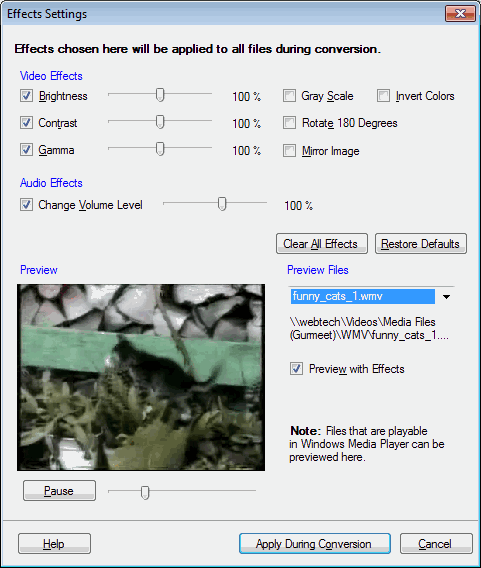
Videoeffekte
Wenn deine Originalvideos zu langweilig oder zu hell sind, kannst du es verbessern, indem du die Helligkeit Mit Hilfe des Schiebers. Einstellen der Kontrast Entsprechend macht ein Bild vom Hintergrund unterscheidbar. Gamma Wert kompensiert die Unterschiede in der Farbdarstellung auf verschiedenen Ausgabegeräten, so dass Bilder bei Betrachtung auf verschiedenen Monitoren gleich aussehen. Der hohe Gamma-Wert führt zu helleren Videos.
Aktivieren Graue Skala Wandelt die Farben in ein Bild in Graustufen um. Verwandle deine farbigen Videos in Schwarz und Weiß. Du kannst das Bild mit der Oberseite nach unten drehen Drehen Sie 180 Grad Option. Die Videos, die von einer auf dem Kopf gehaltenen Kamera aufgenommen wurden, können mit diesem Effekt korrigiert werden. Spiegelbild Effekt erzeugt das Bild, das mit dem Original identisch ist, aber seine rechte und linke Seite umgekehrt. Farben umkehren Effekt gibt dem Videobild einen ähnlichen Look.
Audioeffekte
Das Volumen der konvertierten Mediendatei kann mit dem Lautstärke ändern Schieberegler. Hören Sie die Lautstärke, indem Sie das Video im Vorschaufenster abspielen. Sie benötigen entweder ein Mikrofon oder Lautsprecher, um das Audio zu hören.
Vorschau deiner Medien
Vorschau des Videos und der Audio-Effekte, die Sie vor der eigentlichen Umwandlung anwenden. Wählen Sie die gewünschte Datei aus Vorschau von Dateien Dropdown-Liste. Deaktivieren der Option Vorschau mit Effekten Spielt Ihre ursprüngliche Mediendatei.
Hinweis: Das Vorschau mit Effekten Funktioniert nur für Dateien, die im Windows Media Player abgespielt werden. Zum Beispiel werden MOV-Dateien nicht In der Vorschau angezeigt werden. Allerdings werden Effekte auf alle Dateien angewendet, wenn sie im Batch vorhanden sind, der umgewandelt wird, auch wenn sie nicht in der Vorschau angezeigt werden können. Wenn eine Datei nicht in der Vorschau angezeigt werden kann, wird ein Beispielbild angezeigt, um die ausgewählten Effekte anzuzeigen.
|